WARNING AND NOTICE

All tricks in this blog are only for educational purpose. Learn these tricks only for your knowledge. Please donot try these to harm any one. We will not take any responsibility in any case. All softwares and tools on this site are here for private purposes only and If you want to use a software for business purpose, please purchase it. I do not host many of these tools. I Post links that I have found from numerous Search engines. I will not be responsible for any of harm you will do by using these tools.

Readmore

Showing posts with label internet. Show all posts

Friday, November 4, 2011

Send / Share large files to freinds from local disk without uploading

Hey friends in last post i give you the trick on how to increase or get free space on cloud service provider
"DROPBOX".But if you noticed that it requires uploading files.Today i got one new trick to send/share large data with your friends from your local disk without uploading it.

if you have  very often to send or share large files to friend or business purpose ,then you know how difficult to send lare volumes of files via email via mail or services like yousendit. The online file sharing websites like Dropbox or Windows Live Skydrive have limitation or one has to have a paid subscription.

Thursday, November 3, 2011

How To Get More Space On DROPBOX For FREE

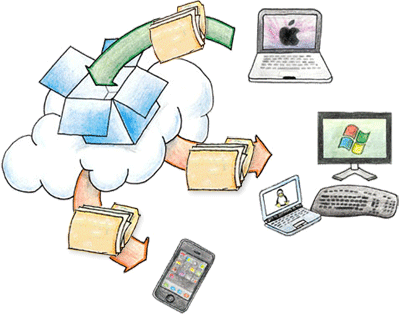
DROPBOX is a nothing but a one of the Cloud service which are good & best way to store  & retrieve data at any time from any where without carrying your data with in pen drives.

All new accounts start with 2GB free,but using given tips you can get more space for free.

Sunday, October 9, 2011

Hacks to Beat Rapidshare download limits & waiting times


Rapidshare has been a excellent site for sharing large files.Recently many users get ways to bypassing download limits & skipping waiting times.today i give you some of ways to bypassing limit & skipping waiting times which mostly users need.

Friday, October 7, 2011

How to download books from Google books for Free?


 Here is the trick to download google book and read it off line also. 

Friday, September 23, 2011

New FireFox plugin : convert your image in to Jigsaw Puzzle – Online or Locally


......................................................................................................................................................................
About this Add-On:
......................................................................................................................................................................

With Puzzle you can turn any image opened with Firefox (on the web or stored locally) to puzzle pieces and play. You can start playing on a low level (4 elements) and advance to higher levels - make it more difficult - upon completion. Have fun!

Friday, August 26, 2011

iPhone 5 Concept Features

Amazing Concept iPhone 5. This CG iPhone 5 has advanced iPhone features such as a sleeker iPhone design, a laser keyboard & holographic display all rolled into this iPhone 5 video.

The computer generated Concept iPhone 5 features is an exponential leap to the iPhone 4 or iPhone 3gs of today.

We hope you enjoy this iPhone 5 video more than the current trend of iPhone 5 rumors such as iPhone 5 leaked and iPhone 5 unboxing videos. Apple is yet to make the iPhone 5 announcement. So have your fill of this new iPhone video before the iPhone 5 release.

Tuesday, February 8, 2011

0
Android Application to Play and Control Torrents via uTorrent on Mobile Device

Bandwidth utilization is the only part why we still don’t have any mobile application can dealt with torrents link. But this seems to come to an end as BitTorrent, Inc. recently announced its latest remote control app uTorrent Remote which will let you manage your desktop torrents direct from Android Phone. Though the latest release is available only as a rough alpha.


Tuesday, November 16, 2010

0
Share Copy Paste Clipboard Data And Screen Captures Over Internet

Many a times, we need to upload some of the screenshots or clipboard data to the web to make any presentation or for explanation of few things to our friends or colleagues. Also, while discussing some work with your colleagues on Internet, you need share your screen with them for better understanding of the things.

For this, first you have to take the captures of your screen and then, upload it for sharing so, most of you collect the screenshots and data beforehand to avoid the problems and time delay at the time of the talk. Considering this problem, there is a freeware called Ybex Clipboard which is an easy to use tool and a free web service to capture, annotate and share your screen, texts and images.

Ybex Clipboard is a smart and compact tool which will also let you copy the clipboard data between two computers securely. Both Remote Copy and Remote Paste options can be found in the context menu if you are connected to a LAN. The tool is compatible with Windows 7, vista, xp and 2000. After installation, it will run in the system tray with this icon.

image

But, before running, it will ask you to login with your email id to make an account on ybex.com where you can mange your uploadedimages.

image

After this, you can either click on the system tray icon or use keyboard shortcut ‘Ctrl+shift+Y’ to open the clipboard menu in which you can share clipboard, screen or annotate and share area as per your desire.

image

Lets say, i will choose ‘annotate and share area’ then, i will be given my screen like this and a toolbar with the help of which i can share my ideas regarding the part of screen which i will capture.

image


After the work, i will just click ‘upload’ and within few minutes, my image will be uploaded to my ybex account with a notification message like this.

image

Now, you can click Ctrl+V in your mail program or in IM-client to paste it and use it where you want.

You can mange the uploaded images in the option of ‘Manage shared’ which will take you to your ybex account.

image

You can manage few settings in the ‘settings’ option which will open a new window where you can access few options like automatically check for updates, start on windows logon and more. The tool is available in only 2 languages – English and Russian.

image

Download Ybex Clipboard

0
Set Windows Desktop Wallpaper With Any Picture From Internet

Many of us get bored from their wallpapers in a day or two so, they keep on changing the wallpapers of their laptop/desktop frequently. This way they end up with a pile of wallpapers in which if they want to choose a particular favorite one, then, it takes quite a lot of time. So, instead of searching the wallpaper in the pile they prefer searching on the Internet for saving of their time. And, the pile stays like that only adding to the unnecessary usage of memory.

Considering this problem, there is a Google chrome extension called Set Image As Wallpaper for Windows only which will let you set any web image directly as your wallpaper.

When you will install set as wallpaper extension, it asks you the access to all your data on computer and the websites you visit. You just have to click ‘Install’ and it will be installed in just a few minutes. After installation, it will add a new option in the right-click menu of a web image ‘set image aswallpaper’.

image

It will only create problem when run in incognito window because Google chrome will not be able to prevent this extension to save the browsing history in incognito window. So, take care of it.

Generally, for making any web image as the wallpaper, first we save it in our system and then, right-click on the image and choose the ‘Set as wallpaper’ option. But, with this extension installed, we just have to search for the desired type of wallpaper and right-click on the image to choose the option ‘Set image as wallpaper’ option.

image

It will open a new tab in which it will show you the selected image with the options of its size like stretch, fit, tile, fill or center. You can select the desired optionwhich will be best for your desktop wallpaper and just click ‘Set Wallpaper’ and its done.


image

You can manage its settings in the ‘options’ which will again open anew tab where you can set some of the settings like default position of wallpaper, option for future notifications and more.

image

Set Image As Wallpaper is a smart extension which is available for windows till now but will be available for Linux and Mac users also in some time.

Download Set Image As Wallpaper

For more extensions, read articles on Google chrome or visit Google chrome extension gallery.

Saturday, October 30, 2010

0
Alternative Safely Remove Hardware: Best option even for USB Harddrive

Though windows Safely Remove Hardware is a good option when wehave finished copying working with any USB disk or drive but sometimes it is like a havoc to go through it. Like few times it seems to fail even recognizing the Large Capacity hard drive and sometimes it kept always busy with the processing.

But now you don’t need to stick with the inbuilt option as there is an alternative tool which you can use called USB Safely Remove which can manage can all the USB devices connected to the system. With this tool you can of course, safely remove not only pen drives, but also hard drives and other devices too.

Features:

• Easy device recognition: View device icons for easy recognition of the drives.

• Saves time: Safely remove using the hot keys

• Program Autorun on device connection

• Command Line option also available

Download USB Safely Remove